 SOLIDOS Modeler - Rectangular Prism
 Rectangular prism - Creates a rectangular prism:
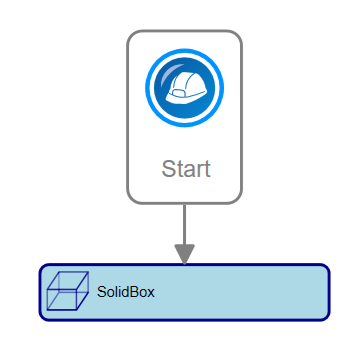
The Rectangular Prism activity is useful when designing devices that are essentially rectangular parallelepipeds, such as connection boxes or manholes.
The Rectangular prism activity has the following properties:
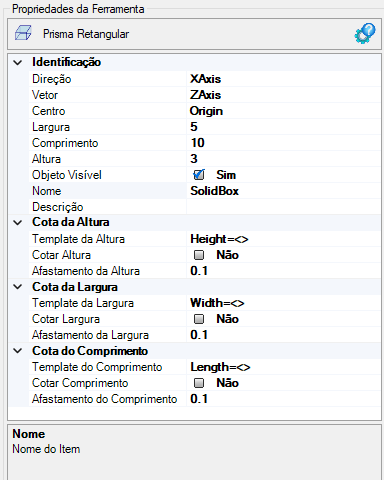
- Identification
- Name - name of the activity
The solid's name must follow the naming rules
- Center - name of the point where it is located the center of the Rectangle
- Vector - name of the vector normal to the Rectangle's plane
- Length - a VB expression to evaluate the length in the X direction
- Width - a VB expression to evaluate the width value in the Y direction
- Height - a VB expression to evaluate the height value in the Z direction
- Direction - name of the
 directional vector indicating the X direction
- Center - name of the
 point where the prism's centroid is located
- Visible Object - indicates whether or not the point should be drawn in the preview
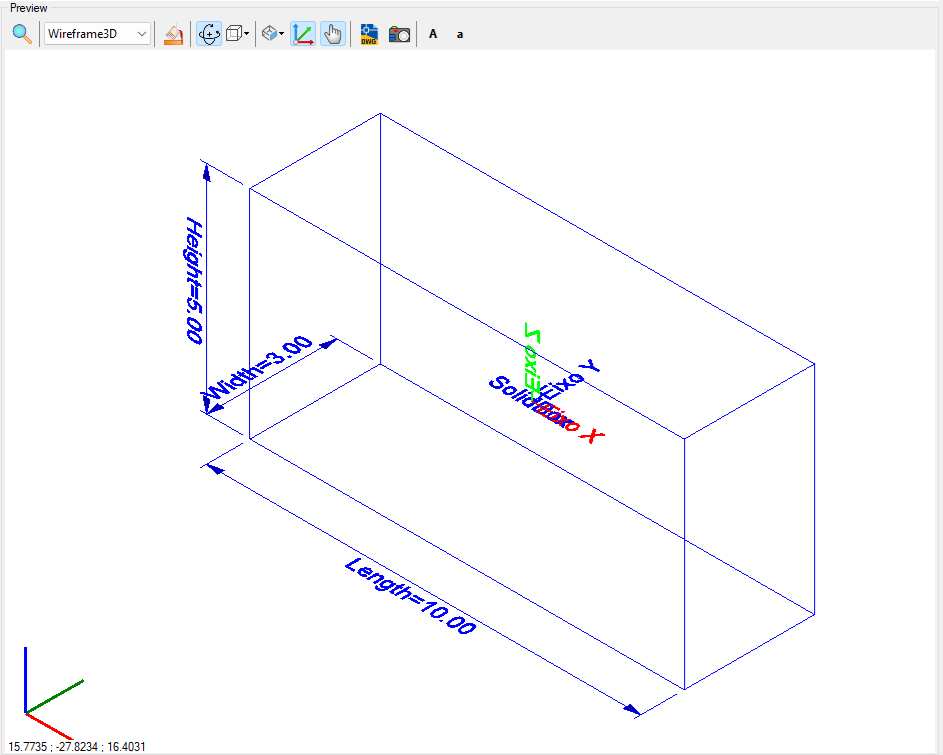
- Dimension Length
- Length Offset - VB expression that sets the distance of the dimension line from the point's position in the Y direction
- Dimension Length - indicates whether to draw a dimension for the length, in the X-axis direction
- Length Template - a text template that provides the dimension
Use <> for the dimension (Example: Length x = <>)
- Dimension Width
- Width Offset - VB expression that sets the distance between the dimension line and the point position in the Y direction
- Dimension Width - indicates whether to draw a dimension for the width, in the X-axis direction
- Width Template - a text template that provides the dimension
Use <> for the dimension (Example: Width y = <>)
- Dimension Height
- Height Offset - VB expression that sets the distance between the dimension line and the point position in the Y direction
- Dimension Height - indicates whether to draw a dimension for the height, in the Y-axis direction
- Height Template - a text template that provides the dimension
Use <> for the dimension (Example: Height z = <>)
Properties
Implements methods for solids
If the text appears too large or small, or if the sphere representing the point is too big or too small, use the buttons (A, a,
 ,
,
 ) at the top of the screen to adjust the preview.