Solids Builder - Point (XYZ)
 Point (XYZ) - creates a point given the ordinates X, Y and Z:
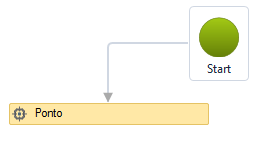
The Point (XYZ) activity has the following properties:
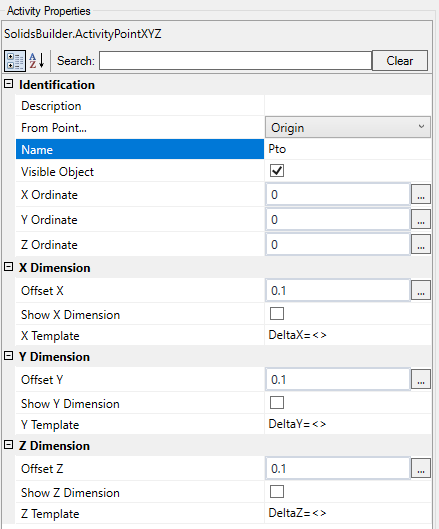
- Identification
- Name - point name
The point name must follow the naming rules
- From Point - when you want to draw points with X, Y, Z relative to another point, choose it from the list
When the point is Origin, X, Y and Z are considered absolute values
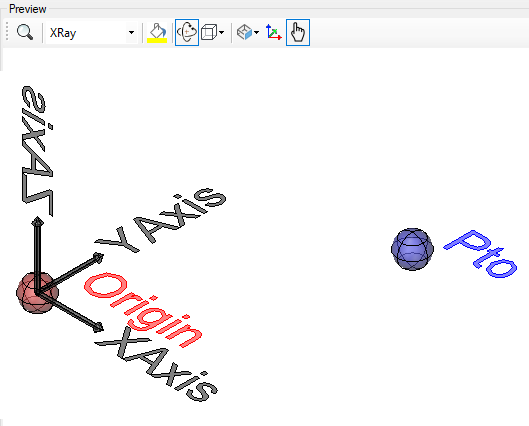
- Visible Object - indicates whether or not the point should be drawn in the preview
- X Ordinate - a numeric value or a VB expression for X ordinate, absolute/relative
- Y Ordinate - a numeric value or a VB expression for Y ordinate, absolute/relative
- Z Ordinate - a numeric value or a VB expression for Z ordinate, absolute/relative
- X Dimension
- X Offset - VB expression how far the dimension line from the point's position in the Y direction
- Show X Dimension - indicates whether to draw a dimension on the X axis between the origin point and the point itself
- X Template - a text template that provides the dimension
Use <> for the dimension(Example: Delta X = <>)
- Y Dimension
- Y Offset - VB expression how far the dimension line from the point's position in the X direction
- Show T Dimension - indicates whether to draw a dimension on the Y axis between the origin point and the point itself
- Y Template - a text template that provides the dimension
Use <> for the dimension(Example: Delta Y = <>)
- Z Dimension
- Z Offset - VB expression how far the dimension line from the point's position in the X direction
- Show Z Dimension - indicates whether to draw a dimension on the Z axis between the origin point and the point itself
- X Template - a text template that provides the dimension
Use <> for the dimension(Example: Delta Z = <>)
Below, an example of what the dimensions look like:

Note, these dimensions only appear in the preview of the model and then it will be possible to show or not on the preview screens of the device section
If the text is too big/small, or the sphere representing the point is too big or small, use the buttons( A, a,  ,
,  ) at the top of the screen to change the preview