 Notaserv
is a program to generate service notifications.
Currently he is able to generate horizontal geometry reports, vertical, location, curves above and volumes of materials using the method of sections.
To use, simply enter Notaserv it on the command line and press enter.
Optionally, you can click Enter and select the playlists in a list:

selection alignments will be asked and the following screen will be shown:

On the screen that opens, on the tab Properties select the items that will be listed for all alignments, they can be:
-
Alignments
-
incremental - calculates properties of all entire Station, or the value set in the increment of Alignments tab
-
Raw - Raw Station
-
X - X coordinate
-
Y - Coordinates Y
-
Station - station value.
Do not forget to set the formatting
Station in the lower right corner:

-
Geometry Points - Write PC, PT, ST, SC, PI PP, PF, or click the Translations menu at the top of the screen Notaserv
-
Type - Indicates whether a PI contains circular curve, composite or PI is dry
-
Central Angle is the central angle of the curve (center, PC, PT), is circular or composite (center, TS, TS)
-
X - radius circular curve
-
Length - Spiral length (Lc), arc tangent or
-
POIs Counter - puts a suffix in the IP text, PC, PT, beginning with the initial predetermined number in the "Translations"
-
EstacaExtendida PI - Calculates the projection station which is the IP from the PC / TS
-
External Tangent - Calculates distance from PC / PT to the PI or TS / ST to PI
-
Superelevation
-
Apply rounding - Controls whether it will be calculated superelevation with rounded chart at the point of maximum superelevation is minimal and transitions (not applicable to 2010)
-
Points - Controls which points will be shown (board, shoulder.
..)
-
Profiles
-
elevation - Profile Elevation this station
-
Red elevation - greide elevation least part of the plot
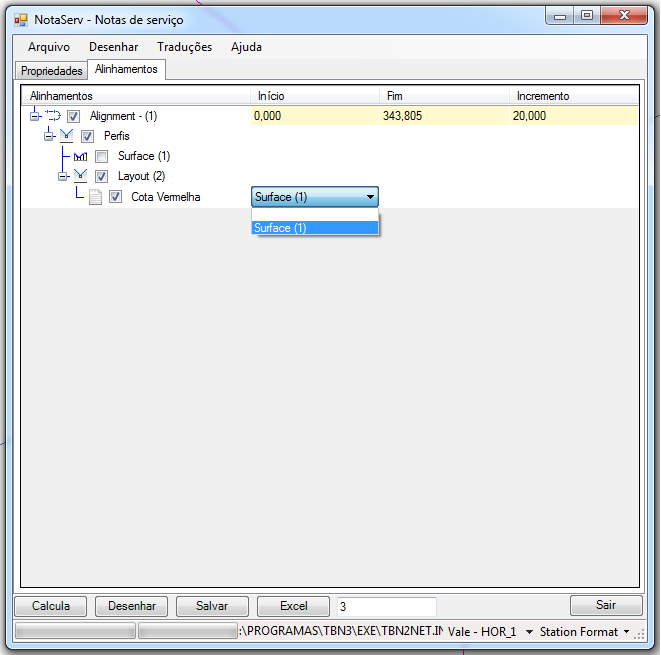
How can you have more than one surface profile, you should choose the Alignments tab, which is the profile to be used to compare
-
Slope - Slope of Greide this station
-
geometry points - Write if the station is PCV, PTV, PIV
-
X - radius circular curve, or parabola symmetrical
-
Type - Tells whether it Circular, Parable, or Parable Asymmetric
-
Extension - length of vertical curve or tangent ramp
-
PIV Counter - puts a suffix in the text PIV, PCV, PTV, which starts with the initial predetermined number in the "Translations"
-
sections
-
Transversal Areas
-
Distances
-
Volumes
-
Cumulative Volumes
-
Corridors
Note that each item is in the "Translations" a corresponding text, which will be used in the column heading.
Thus, if the title of the column that shows the values ??of "RAW", which is in linhamentos should be the "Raw", just put there as in the image.
As for the sections, profiles and Corridors, note that the name can be composed using a template.
For example, when the program create the column of the profile data, we have the translations of the text column "[NOME] [PROP]" where:
-
[NOME], will be replaced by profile name
-
[PROP], will be replaced by the text property, which in this case would be the text of the translations of "elevation", "Slope" and "PIV, PCV, PTV"
For sections, the initial template is "[NOME] \ n [PROP] \ n [MATERIAL]" where:
-
[NOME] will be the name of the sample line group
-
[PROP] is the name of the property, which can be "Distance", "Area", "Volume" or "Volume YTD"
-
[MATERIAL] will be the name of the material appearing on the list material from the sample line group
For Corridors, the initial template is "[NOME] \ n [PROP] \ n [COD] \ n [LADO]" where:
-
[NOME] will be the name of the hall
-
[PROP] is the name of the property, which can be "X", "Y", "High" or "offset"
-
[COD] will be the name of the point code, check your CODE SET STYLE to know what the runner codes creates
-
[LADO] can be "right", "left" or "center"
So if you just write "[PROP] \ n [COD]" for Corridors and for listing x, y and height, have the named columns like this: "X Offset", "Y Offset"
To facilitate formatting of the various alignments reports, you can set the content of the columns in the "Column Index" column.
In the second tab the selected alignments will be listed.
Here you can also disable or enable items to be listed for each alignment.
Finally, if you want to change the value of the "increase" the Station, the initial station, or end, select the Alignment tab Alignments
and change the values ??in the fields that preechem in the boxes below alignments list
Data from cross sections will be listed only where there are the SampleLines
For Corridors, the Corridors that have at least a baseline will be listed using
List alinhamneto.
After selecting the desired items, click the "Calculate" button.
In the example below, we see the service notification with a curved frame alignment:

will be shown new tab after tab "alignments", one for each alignment:
You can save the data by clicking the "Save" button.
It will ask for the file name to be generated in HTML.
You can even rearrange the columns before exporting.
To do this simply click on the title of it and drag it to another position.
You can export the data to HTML, draw on the screen, Excel, or simply select the text and do "CTRL + C" and "Ctrl + V" where you want.
Since it is massante be remembering which items to mark certain service notification as well as the order of columns, you can save these default settings for that
click the "File" menu and choose "Save Properties.
"
will request a name for this setting.
You can type a new name or choose to overwrite an existing list.
After this is done, you can choose in the bottom of the presets list:

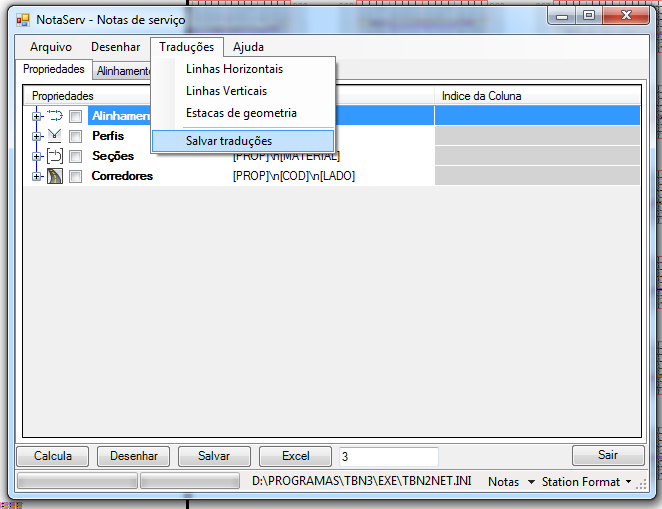
There are also cases where it is necessary to translate some of the terms, either of geometry horizontal, vertical, etc.
Then after you calculate the data, something appears wrong written (in English), just go to "Translations" menu at the top of the screen:
NOTASERVTESTE
There are situations where for some reason the alinhmento causes an error in processing the command NOTASERV.
In general this error is because the alignment have error in its definition, for example:
a curve composed of spiral, curved and spiral, wherein one or both strands have zero length.
Use the NOTASERVTESTE, select the alignment and observe the command line and the image below:

is the case mentioned.
Two spiral of ZERO length.
Correct geometry alignment and try again.
Notaserv is a program that is constantly growing, so if you have an idea for it, please contact me !! 50% discount to whoever gives a good idea !!